The app
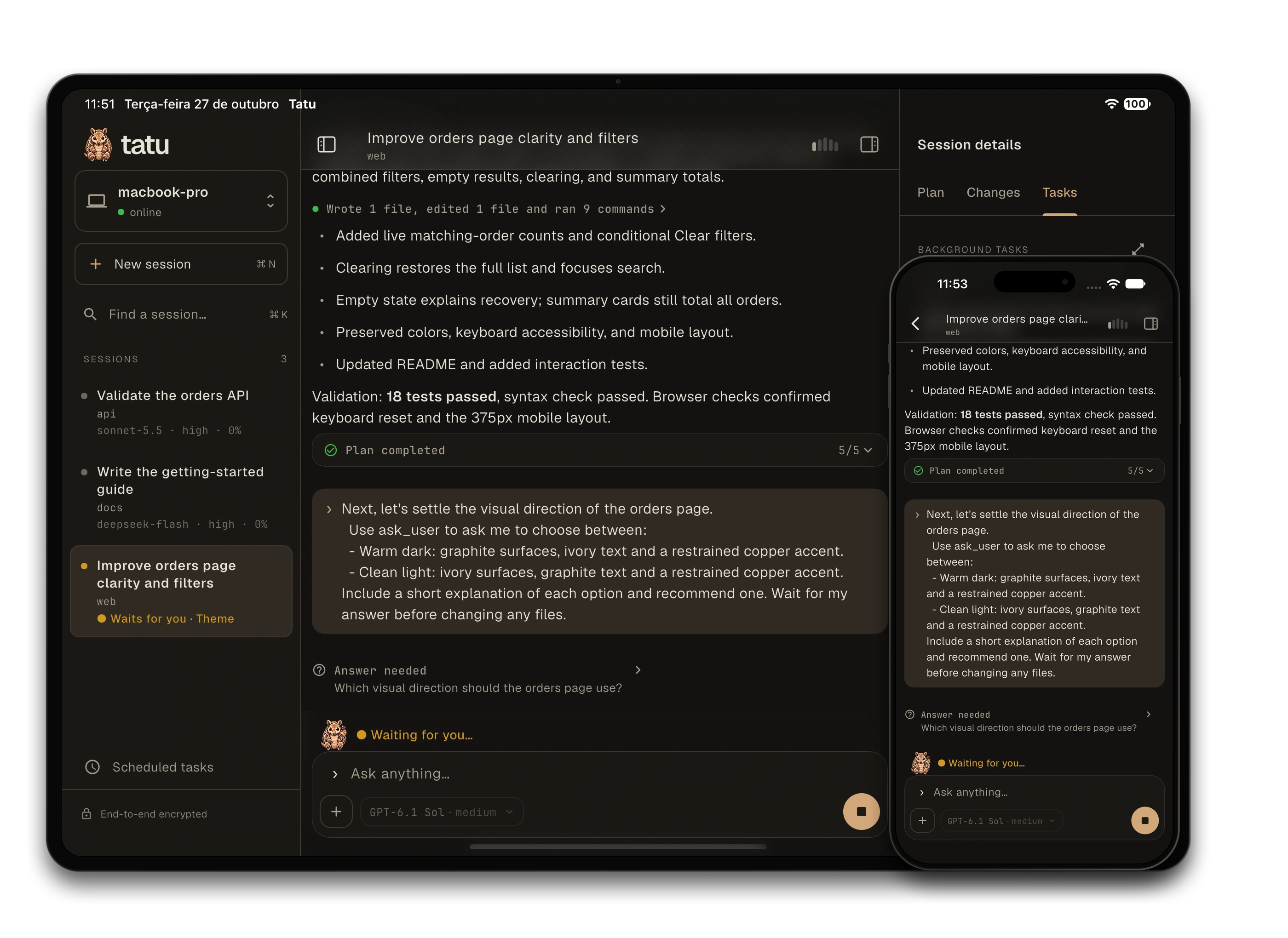
Follow sessions running on your computers, send work and answer questions from your phone or tablet.
Pair with your computer
Section titled “Pair with your computer”Run this inside Tatu on the computer:
/remote setup My Mac/remote pairChoose Scan the QR code or Paste the invitation in the app. The invitation is also the tatu://pair?... line under the QR code; press c in the terminal to copy it.
An invitation link asks Pair with <machine>?, names the relay, and waits for your confirmation. Only confirm if you just requested that invitation.
Computers and sessions
Section titled “Computers and sessions”On a phone, the list groups sessions by computer and shows each computer’s connection state. Each session shows its project, branch and activity, with the animated tatu beside it: working, waiting for an answer, finished or failed.
Open a session to follow the conversation. The app shows:
- Your messages, the model’s answers and its reasoning when available.
- Tool calls and their output, plus subagent cards. Images in a tool’s result appear as thumbnails below its group and in the call’s details; tap one to open it full screen with zoom.
- A plan panel above the composer during execution and expandable plan summaries in finished responses. While a plan awaits approval, a compact View plan strip replaces the panel, without steps or progress. It keeps the panel’s styling; tap anywhere on the row to read the plan.
- Questions with text fields, single-choice and multiple-choice answers. Choosing an option does not send it until you confirm. When you are asked to approve a plan, View plan opens the whole plan, rendered, without sending an answer. Approve, request changes or stop from the question’s answer sheet; returning from the plan keeps your answer draft.
On a tablet
Section titled “On a tablet”On iPad and Android tablets, the layout follows the room in your window:
- Sessions stay beside the conversation when there is space. Choose a computer at the top, search by session name, folder or branch, and open another session without going back to the list.
- Session details sit beside the conversation in a wide window. Its Plan, Git, GitHub and Tasks tabs show the plan’s progress, local and branch diffs, pull requests and background-task output. Use the buttons at the left and right of the chat header to fold the sessions or details away; those choices are remembered the next time you open the app.
- In a narrower window, details open over the conversation when you ask for them. Close with the panel’s close button, Escape, Back or a tap outside. In a small window, the conversation is a page of its own, as on a phone, and Session details opens as a sheet.
Switching sessions keeps your unsent text and reading position separately for each session while the app runs. Resizing the window keeps the conversation and draft; starting or replacing a conversation clears the old draft.
When sessions sit beside the conversation, an agent’s question opens inside the conversation and leaves those sessions in reach. Closing it without answering leaves it pending as a card: tap the card to return to it. Model and settings pickers open as centered dialogs when the window has room, with their fields kept above the keyboard.
Git and GitHub
Section titled “Git and GitHub”Open Session details, then Git, to read changed files and their diffs. The branch comparison shows committed changes against a base, separately from uncommitted files. Choose a repository when there is more than one, and use Choose base if the automatic comparison is not the one you want.
Open GitHub to see the branch’s pull request, checks and review summary. These are snapshots, not live monitoring: check the update time and use Refresh to read them again. Missing access, an ambiguous pull request or an unavailable check is shown as such, not as a passing result.
Set up GitHub access
Section titled “Set up GitHub access”Install the GitHub CLI on the computer running the session, then sign in there:
gh auth loginFor GitHub Enterprise, add --hostname <host>. Return to the app and tap Check again. Tatu does not install or sign in to gh for you. This is separate from /login github-copilot, which signs in to a model provider. GitHub API access does not change Git’s fetch or push credentials.
Commit, push and open a pull request
Section titled “Commit, push and open a pull request”- In Git, select changed files from one repository and tap Publish…. Conflicted files cannot be selected.
- Review the files, branch, remote and pull-request base. Enter a commit message. Each selected file is committed with its current contents, not just its staged changes; staged changes in other files stay untouched.
- Choose Commit and push, or enable Open a pull request, fill in its title and description, and confirm Commit, push and open pull request. A new pull request is a draft unless you turn off Open as draft. Commit only and Push only are also available; push-only leaves your selected files uncommitted.
If the branch already has an open pull request, pushing updates it without creating another. If GitHub cannot be read, you can still commit and push when Git is ready, but you cannot create a pull request.
Commit needs a configured Git name and email. Push needs a configured remote and credentials that work without an interactive prompt. Use a feature branch: the app blocks publication with detached HEAD, a branch with no commits or a Git operation in progress; push also refuses the base and remote’s default branch. If files or the branch change after review, read them again before confirming. An older computer may ask you to update Tatu first.
Progress shows commit, push and pull-request results separately. A later failure does not undo an earlier success. When Retry is offered, it resumes at the failed step without repeating completed steps. Closing the sheet does not cancel publication; reopen it to check progress. Push never forces changes. Git hooks can run with your permissions; read a cloned project’s hooks before publishing.
Give the agent a failed check or review thread
Section titled “Give the agent a failed check or review thread”Open a failed check to read its details and available log excerpt, or open unresolved review threads to read their comments and code context. Logs and long thread lists can be incomplete; the app marks missing or shortened content.
Fix this check, Address this thread and Address all N threads add context to your message draft. They do not send it, rerun a check, reply to a review or resolve a thread. Read and edit the draft, then send it when you are ready. CI and reviewer text is marked as untrusted data. Sending it makes it part of the conversation sent to your model provider; see Privacy.
Open a web preview
Section titled “Open a web preview”Ask the main agent to show your app on your phone or tablet, for example “run the site and open a preview for me”. It starts the server, waits for its port, checks the HTTP response at / and publishes it. This does not verify that the page renders or that all its resources load. You can also start the server yourself and publish it in that session’s Tatu terminal; if the page calls another local server, such as an API, publish both ports, the page first:
/preview publish 4321 Site/preview publish 5173,3000 Web and API/preview listThe app shows a globe at the top right of the chat header, next to the usage gauge. A small popover points to it and announces a new preview by name, with Open preview, or Choose a preview and the available count. Tap the popover or the globe: one preview opens directly; with several, choose one by name. The popover matches the app’s light or dark theme, disappears after four seconds and can be dismissed by tapping outside without blocking the conversation. There is no port-entry dialog. The globe disappears when nothing is published and is dimmed while offline or refreshing the session after reconnecting.
You can also ask the main agent to publish or revoke a preview as part of your work, including from the app. Its preview tool (start, publish, revoke, list) is available in interactive sessions, not print mode or subagents. The app initially opens the root of the server (/): if it answers 404 or an error, the agent tells you so you can fix the route. You cannot run /preview commands from the app, even to list or revoke. Publication and revocation commands belong to the session’s terminal on the computer running the agent. A paired terminal on another computer has its own local /preview access panel; it does not publish or revoke, and does not change the app’s command restrictions.
Up to eight previews can be published per conversation. Each shares up to four ports on 127.0.0.1, not an arbitrary address: the page, and the servers it calls. The app serves them on the phone under the same port numbers and opens the page at localhost:<port>, so a page that calls http://localhost:3000/api reaches your computer’s port 3000. If the device already uses the page’s port, the page opens on another local port and absolute addresses may need project configuration. A busy additional port is not forwarded on another number; free it or change your project’s ports. The page and its requests travel encrypted end to end through the relay; there is no public preview URL. Both the computer and app need a version that supports published previews. The page opens in a WebView, not the agent’s browser; navigation to other origins is blocked.
The WebView has one toolbar: Close (×) returns to the conversation, Back (‹) navigates the page’s history, the address shows the current local URL, and Reload refreshes the page. Tap the address to edit it, enter a full local URL or /path, and press Go on the keyboard. Tap outside or press Escape to cancel editing. The address follows navigation, including SPA routes; changing it cannot authorize a new host or unpublished port. Invalid addresses show a short field error without replacing the page. Blocked auxiliary frames do not show a banner; a blocked main-page exit gets a brief notice. Actual load or connection failures remain visible with retry.
Tatu does not discover other servers or continuously monitor server health or processes. Stopping a server does not revoke access. Use /preview revoke <id> (the ID comes from /preview list) or /preview revoke all in the computer’s terminal, or ask the agent to revoke it. Revocation closes active connections but does not stop the server; stop it separately. Publishing a port that a preview already shares creates a fresh ID and revokes the old one. New, resume, fork, branch and closing the host session revoke all previews; history does not restore them.
The phone and a paired terminal can open the same publication independently. Closing the app’s preview closes its tunnel, not the terminal’s. The terminal uses a normal browser, so it can follow external links, but those links never authorize extra ports on the computer running the agent. Unlike the app, the terminal does not fall back to other port numbers when one is busy. Closing a browser tab there is not a reliable stop signal: use x in its preview panel; Esc only hides that panel. Host revocation ends access on both devices.
Closing the page leaves its publication available. A lost connection closes page connections, not the computer’s publications. After reconnecting, the app reads the current list without automatically opening a page or restoring old connections. Open the preview again yourself. Keep the app in the foreground.
Use relative resource URLs and a same-port API proxy. Separate API or hot-reload ports, absolute localhost URLs, origin checks and login callbacks can need project configuration. HTTPS previews are not supported. Existing relay transfer limits still apply.
Try a site with hot reload
Section titled “Try a site with hot reload”For an Astro project whose site is in site/, start it in a separate terminal:
cd sitenpm run dev -- --host 127.0.0.1 --port 4321In Tatu on the computer, run /preview publish 4321 Site, then /preview list. In the app, tap the globe at the top right of the chat header, beside the usage indicator, or Open preview in its temporary popover. Check that the page and resources load; edit a site page and check hot reload on your device. WebSocket transport is supported, but native rendering and a project’s hot-reload configuration still need this check.
When done, run /preview revoke all in the computer’s Tatu terminal and check that the globe and any preview popover disappear and the open page loses access. Stop the server separately with Ctrl+C in its terminal, or /tasks stop <id> if you started it as a background task.
Automations
Section titled “Automations”When a computer has a daemon, its menu (tap the computer’s name) has Automations. A card line such as 3 automations · next 09:00 also opens it. The page lists the computer’s automations:
- Each task shows what starts it (how it repeats, or for a GitHub Projects board the board and column), its project, model and effort, when it runs next and how the last run went, naming the card for a board. A board that cannot be read shows why in red. The switch pauses or resumes it.
- Tap a task to edit it, or the last run to open the session it opened if that session is still in the list. The task’s menu has Run now (not for a board) and Delete, and both ask first.
- New task opens the form: name, what starts it (a time, or the cards of a GitHub Projects board), project, worktree, model, effort, and the repeat and the time, day or date, or for a board the board, the column, where to move the card and whether to run for the cards already there. Next run is worked out as you edit. See Automations.
A repeating time is on the computer’s clock; a single date is read on the phone’s. The computer’s daemon has to be running for a task to run.
Follow a subagent
Section titled “Follow a subagent”Tap a subagent card to open its full conversation in a read-only screen. Read Markdown answers and inspect live tool output; expand Task for its instructions and Details for model, tokens and cost. Use the header selector to switch between the session’s subagents.
The conversation follows new activity only while you are at the end. Scroll up to read without being pulled down; Latest returns to the end. Back keeps your main conversation and draft. Return there to send work or answer questions; the viewer cannot stop or control a subagent.
After reconnecting, the app refreshes the parent conversation before following the child again. If the computer runs an older version or the full history is unavailable, the screen says so and keeps the task and report it has; it does not invent missing messages.
Send work
Section titled “Send work”Type a message or use the microphone to dictate it. @ suggests project files; / suggests commands and their arguments. File mentions refer to files on the computer, not on your phone.
Send photos from the camera or library, including a message with photos only. Tap a photo in a message to open it full screen with zoom. A message takes up to 4 photos, with about 2.5 MiB total after encoding for sending. The app resizes photos first and refuses a set that is still too large.
Messages sent during a run wait in the session’s queue. Take one back to edit its text, or use Take back all N waiting messages to collect them into the composer. Photos do not come back with the text.
Use a keyboard
Section titled “Use a keyboard”With a physical keyboard on an iPad or Android tablet, Enter or Cmd+Enter sends the message. Shift+Enter, Alt+Enter and Ctrl+J insert a line break. Return on the on-screen keyboard still inserts a line break. In a narrow Android window, Enter stays a line break too; Cmd+Enter still sends.
With sessions beside the conversation, Cmd+K focuses session search, unfolding the sessions pane if it is hidden. Cmd+N opens New session when the computer’s daemon offers it. On Android, use Ctrl instead of Cmd for these two shortcuts.
Work with the session
Section titled “Work with the session”- Choose the model and effort in the composer.
- Use
/resumeto open a session picker and/settingsto open the settings panel. - Use
/loginto sign in to a provider on the computer the session runs on. Pick a provider and open the link it shows. For Claude, ChatGPT in the browser, OpenRouter and MCP servers the phone catches the code when you finish in the browser, so there is nothing to paste (if it cannot, it says so and you paste the code). A device code (GitHub Copilot, xAI, Kimi) is typed on the page it names, and an API key provider asks for the key. Closing the panel does not stop a sign-in;/loginbrings it back. - Use
/treeto return to an earlier point in the conversation. - Open the context gauge to see context and account usage, or compact the conversation.
- Open Git and GitHub in session details to inspect changes, publish work or add check and review context to your next message; see Git and GitHub.
- Open background tasks to read their output or stop them. Run in background moves a supported running command out of the foreground.
With the computer’s daemon running and connected, you can also open a session in a project, stop a session the daemon opened, and reopen or discard its worktrees. Stopping a session leaves its worktree in place.
Ask a side question
Section titled “Ask a side question”Send /btw Why did we choose this parser? to open the expandable Btw sheet, or /btw to open it without a model call. Its warning says Not added to the main conversation. Read streaming Markdown, select text or use Copy, and ask follow-ups in its separate multiline field. Main work and the main draft stay separate.
Close with X, Back or a downward gesture without stopping the answer; reopen to return to your draft and reading position. Stop targets only the active side answer, not the main run. Errors, retries and truncation warnings appear in the sheet; a rejected question keeps its draft. Only one side answer runs per session, even with several devices.
The exchanges are shared on the computer running the session, but opening a sheet never opens it on another device. If disconnected, you can still read the sheet with a neutral Reconnecting… notice; sending and Stop wait for a fresh sync. Reconnect does not resend questions. Host shutdown or a conversation replacement (new, resume, fork or branch) discards exchanges. Only usage metrics are saved, subject to the first-main-message and fork rules in Context and cost.
Each question uses the current session model and effort with completed context and retained side history, without tools or new image processing. You cannot attach photos to a side question. Older exchanges can be removed at the 20-exchange or conservative 256 KiB history limit; questions are limited to 16 KiB and output to 4096 tokens or a lower configured/model limit. See Context and cost for all limits and extra provider charges. An older host shows This host does not support /btw, without sending the question into main chat.
Notifications and appearance
Section titled “Notifications and appearance”Push notifications tell you when a question waits, a run finishes or an error stops it. Tapping one opens its session. On macOS, notifications are suppressed while you use the computer; see Set up and pair.
Push notifications on Android have not been tried on a device.
The app follows your device’s light or dark theme. With reduced motion enabled, the tatu stays still instead of animating.
Limits
Section titled “Limits”/exit, /quit, /remote and /preview belong to the terminal and are not available from the app.
The session keeps running on the computer if the connection drops. When you return to the app, it keeps the messages already loaded and waits for the connection before refreshing the conversation. A dropped line shows Connection lost. Reconnecting… while it is being restored, not a conversation-loading failure. Your computer still needs to stay on; the app does not run the agent itself.