Phone and tablet
Your agents, on your phone or tablet.
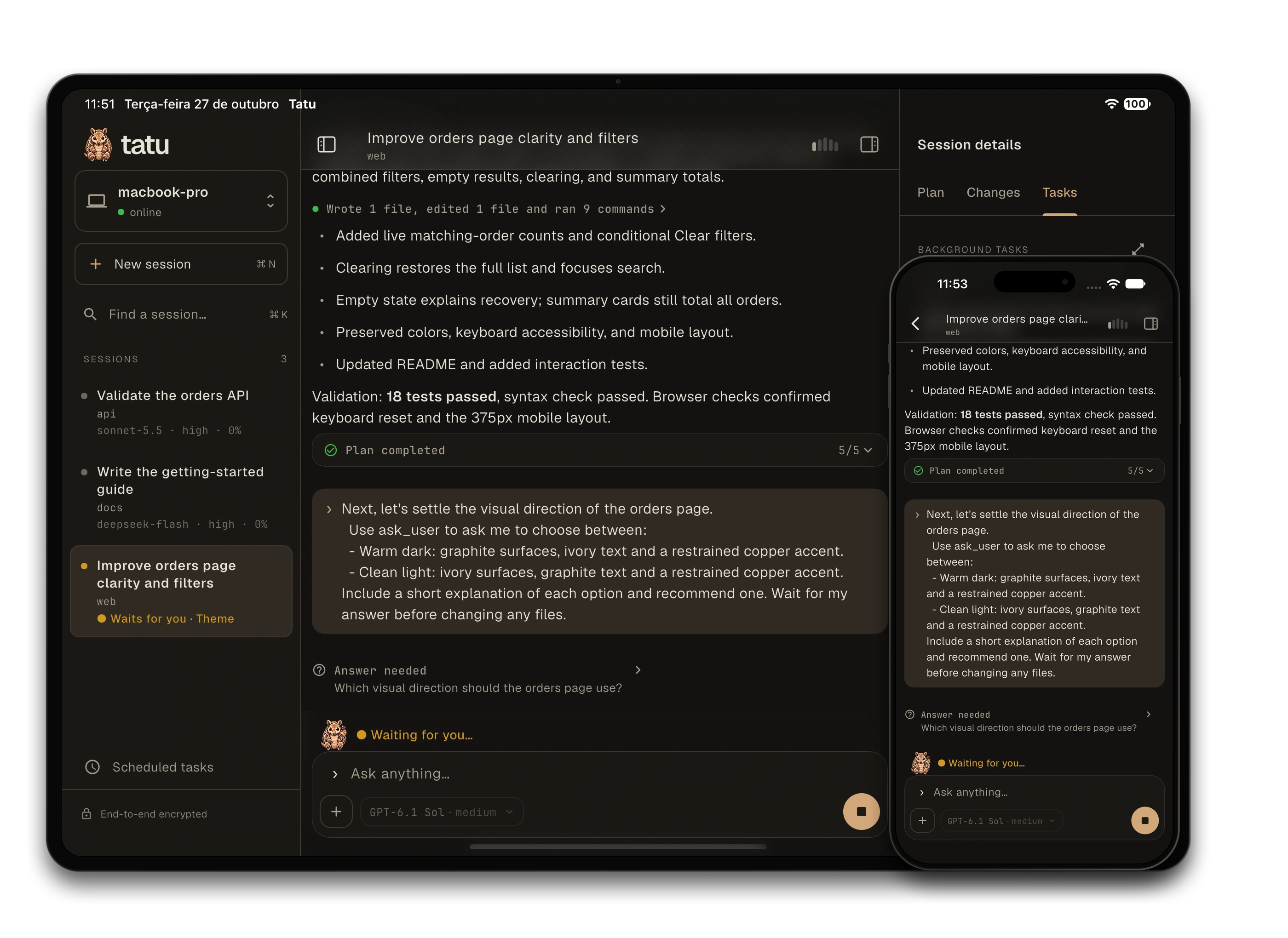
Follow a run from your phone, or keep your sessions and the conversation side by side on a tablet. Your agent keeps working on your computer.
Available on the App Store for iPhone and iPad. On Android it is in beta. The app pairs with tatu running on your computer, in the desktop app or the terminal, so you need one of them installed first.
One list, every computer
The app lists the sessions of each computer you pair, with their project, branch and what they are doing right now. Open one to read the conversation, answer a question, send work with a photo or your voice, switch the model, or stop a run. A question that waits, a finished run or an error arrives as a push notification.
Pair another computer and its agents join the list. Setup is two commands in tatu and a QR code: /remote setup, then /remote pair.
On iPad and Android tablets
More room for the work.
Keep your sessions beside the conversation. When the window has room, give the plan, Git and GitHub details, and background tasks a pane of their own.
- Sessions
- Choose a computer, search its sessions and open another conversation. Your unsent text and reading position stay with each session while you use the app.
- Conversation
- Read the run, send work and answer the agent. A question opens inside the conversation, leaving the sessions beside it in reach.
- Session details
- Follow the plan, inspect Git changes and a pull request, or check a background task without leaving the conversation. Fold the pane away when you want more room.
The window sets the layout
In a narrower window, open the details over the conversation. In a small window, move between pages as you do on a phone. The conversation and its draft stay in place.
Bring a keyboard
Use Cmd/Ctrl+K to search sessions, Enter to send and Shift+Enter for a new line. The on-screen keyboard's Return stays a line break.
And the rest of the app
From a change to a pull request
Read local and branch diffs, choose files and review the destination before committing, pushing or opening a draft pull request. Follow checks and reviews in the GitHub tab. Git and GitHub use the tools and credentials of the computer running your session; pull requests need the GitHub CLI signed in there.
Preview your web app on your device
Ask your agent to start a web preview and open it from the globe in the chat header. The server keeps running on your computer; you choose which ports to share, and traffic is encrypted end to end, without a public URL.
Leave it running on a server
The optional daemon lets the app open sessions in your projects, each in a git worktree of its own, and stop them. Run it on a VPS and drive tatu from the app alone.
Private by design
Everything between the app and your computer is encrypted end to end. The relay only routes messages: it cannot read what a session says, and it cannot send your computer a command. The agent runs on your computer, not on your phone or tablet.
Get the app
iPhone and iPad
Tatu is on the App Store. Install it on your iPhone or iPad, then pair it with your computer.
Download on the App StoreAndroid (beta)
The Android app is in beta. Google Play only lets people on a list of testers install a beta, and the list is a Google Group. Use the same Google account in both steps.
- Join the group. It adds you to the list of testers. Joining is automatic, with no approval needed.Join the Google Group
- Become a tester. Accept the invitation on Google Play, then install the app from the page it opens.Become a tester
After joining the group, the second step can take a few minutes to work.
To pair, run /remote pair in tatu and scan the QR code. See Set up and pair. Questions? Support.